Custom Snapmaker U1 Firmware
Firmware Configuration
Note for users upgrading to v1.1.0: The configuration file has been renamed from
extended.cfgtoextended2.cfg. During the first boot after upgrading a newextended2.cfgwill be created with default settings. You will need to migrate your custom settings fromextended.cfgtoextended2.cfgmanually or usehttp://IP/firmware-config
The extended firmware provides two ways to configure firmware behavior:
- Firmware Config Web Interface - A web-based tool for managing settings, firmware upgrades, and troubleshooting
- extended2.cfg - A configuration file for customizing firmware behavior
Firmware Config Web Interface
Access the Firmware Config tool at http://<printer-ip>/firmware-config/
Note: The Firmware Config interface is only available when Advanced Mode is enabled. On the printer touchscreen, go to Settings > Maintenance > Advanced Mode and enable it, then restart the printer.
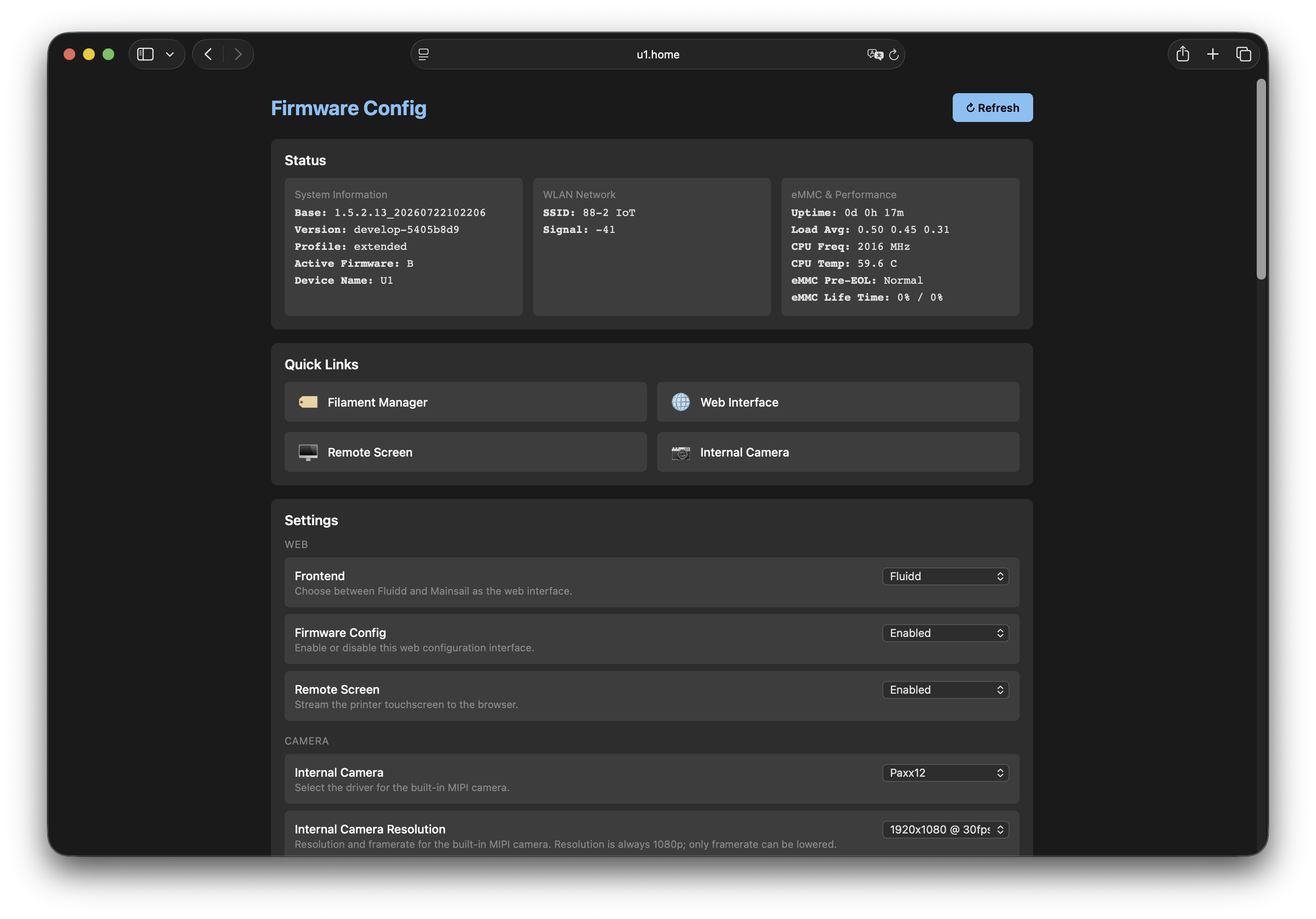
Status
Displays system information including:
- Base firmware version
- Build version and profile
- Active firmware slot (A/B)
- Device name
Quick Links
Dynamic links based on current settings:
- Web Interface - Opens Fluidd/Mainsail
- Internal Camera - Camera stream (when paxx12 service is enabled)
- USB Camera - USB camera stream (when enabled)
- Remote Screen - Remote screen access (when enabled)
Settings
Toggle settings directly from the web interface:
| Setting | Options | Description |
|---|---|---|
| Frontend | Fluidd, Mainsail | Switch between web interfaces |
| Require Login (Fluidd only) | Enabled, Disabled | Require login for Moonraker API access |
| Internal Camera | Paxx12, Snapmaker, Disabled | Select camera service |
| Internal Camera Resolution | 1080p30, 1080p25, 1080p15, 1080p5 | Framerate for the internal camera (paxx12 service only; resolution is fixed at 1080p for AI detection) |
| Camera RTSP Stream | Enabled, Disabled | Enable RTSP streaming |
| USB Camera | Enabled, Disabled | Enable USB camera support |
| USB Camera Resolution | 1080p30, 1080p25, 1080p5, 720p30, 720p25, 720p5, 360p30, 360p25, 360p5 | Resolution and framerate for the USB camera (paxx12 service only) |
| Remote Screen | Enabled, Disabled | Enable remote screen access |
| Klipper Metrics Exporter | Enabled, Disabled | Enable Prometheus metrics |
| VPN Provider | None, Tailscale | Enable VPN remote access (Experimental) |
| Cloud | None, OctoEverywhere | Enable Cloud-based remote access (Experimental) |
| Tweaks | TMC AutoTune, TMC Reduced Current, Object Processing, AFC Stub | Experimental Klipper tweaks (tweaks) |
| Troubleshooting | Faulty Toolhead Bypass | Temporary toolhead thermistor bypass so the remaining toolheads can still be used (faulty_toolhead) |
| RFID Detection System | External, Snapmaker, OpenRFID, OpenRFID (force generic vendor) | Set how filament is detected (RFID Format & Reader Design) |
| Spoolman Integration | Enabled, Disabled | Connect to a Spoolman server for filament tracking and tag-to-spool linking; prompts for the Spoolman URL (Spoolman Integration) |
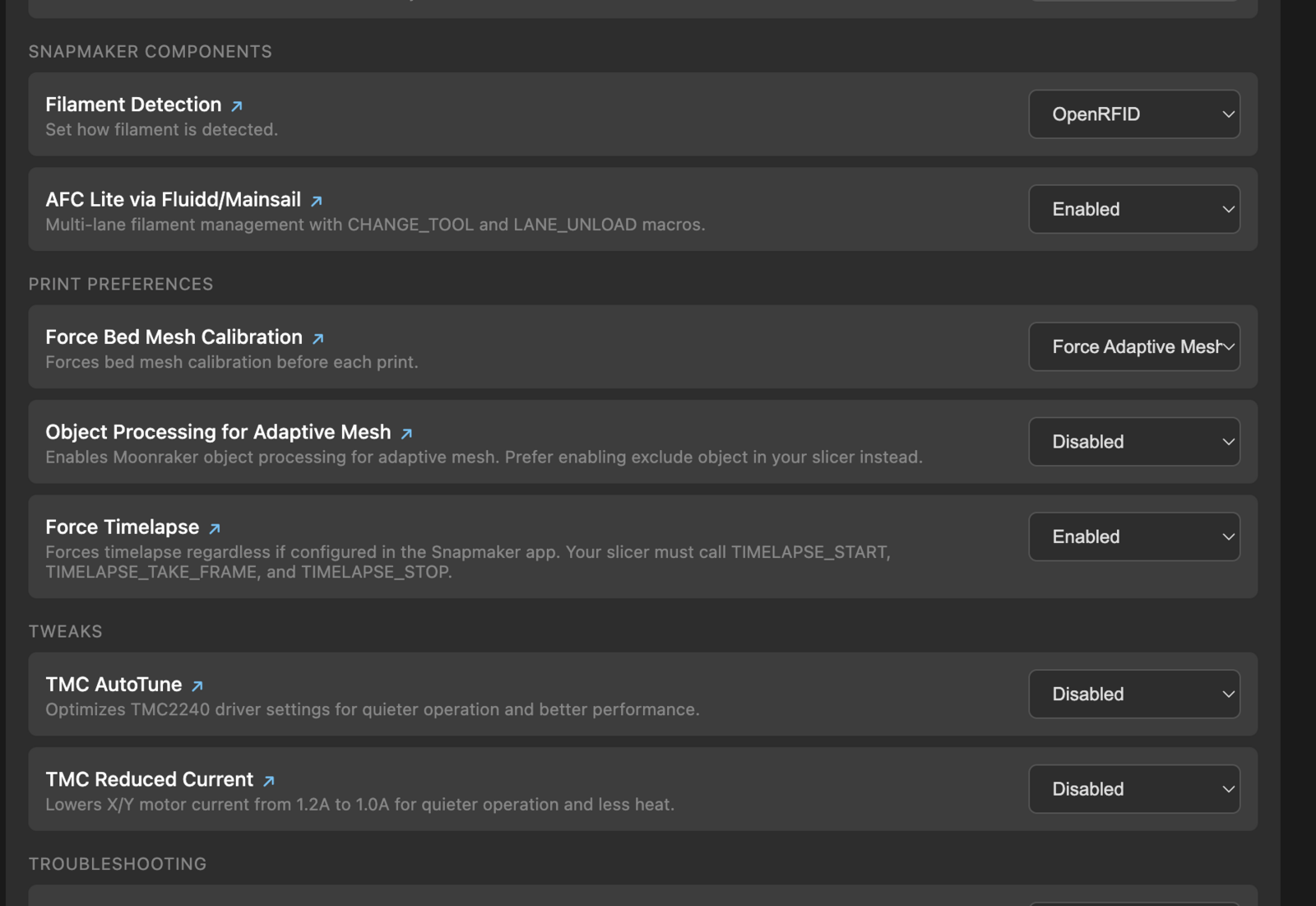
Changes are applied immediately and relevant services are restarted.
Troubleshooting
Available actions:
- Show MCUs Version - Display microcontroller firmware versions
- Collect System Logs - Generate and download system logs for debugging
- Restart Klipper - Restart the Klipper service
- Restart Moonraker - Restart the Moonraker service
- Reboot System - Reboot the printer
- Revert Changes - Remove configuration changes and disable data persistence
- Recover to Backup Firmware - Restore previous firmware version
Firmware Upgrade
Upgrade firmware using one of two methods:
Download from URL:
- Enter a firmware URL
- Click “Download & Upgrade”
- The system downloads and installs the firmware
Upload File:
- Select or drag-and-drop a firmware file
- Click “Upload & Upgrade”
- The file is uploaded and installed
The system reboots automatically after a successful upgrade.
Configuration File (extended2.cfg)
For advanced configuration, edit the configuration file directly.
File Location
/home/lava/printer_data/config/extended/extended2.cfg
Editing the Configuration File
The extended2.cfg file is automatically created by the firmware.
Some Firmware Config options, such as tweaks and troubleshooting helpers,
install files into extended/klipper/ or extended/moonraker/ instead of
writing to extended2.cfg.
Via Fluidd/Mainsail
- On the printer, go to Settings > Maintenance > Advanced Mode and enable it
- Open Fluidd or Mainsail in your web browser (
http://<printer-ip>) - Go to the Configuration tab
- Navigate to the
extendeddirectory and openextended2.cfg - Add or modify your configuration options (see below)
- Save the file
- Reboot the printer
Via SSH
ssh lava@<printer-ip>
vi /home/lava/printer_data/config/extended/extended2.cfg
After saving, reboot the printer.
Configuration Options
[web]
frontend - Web interface selection (only one can be active)
fluidd(default) - Fluidd web interfacemainsail- Mainsail web interface
firmware_config - Enable or disable the Firmware Config web interface
true(default) - Firmware Config available at/firmware-config/when Advanced Mode is enabledfalse- Firmware Config disabled even when Advanced Mode is enabled
remote_screen - Enable remote screen access at http://<printer-ip>/screen/
true- Enable remote screen viewing and touch control in web browserfalse(default) - Remote screen access disabled
Note: Remote screen requires additional Moonraker configuration. See Remote Screen Access for complete setup.
[camera]
internal - Internal camera service selection (only one can be active)
paxx12(default) - Hardware-accelerated v4l2-mpp camera service with WebRTC and timelapsesnapmaker- Native Snapmaker camera servicenone- Disable internal camera
internal_resolution - Internal camera framerate (paxx12 service only; resolution is fixed at 1080p for AI detection)
1080p30,1080p25(default),1080p15,1080p5
usb - USB camera service selection
paxx12- Enable USB camera with paxx12 service athttp://<printer-ip>/webcam2/none(default) - USB camera disabled
usb_resolution - USB camera resolution and framerate (paxx12 service only)
1080p30,1080p25(default),1080p5,720p30,720p25,720p5,360p30,360p25,360p5
rtsp - Enable RTSP streaming support (paxx12 service only)
true- Enable RTSP streaming atrtsp://<printer-ip>:8554/stream(internal) andrtsp://<printer-ip>:8555/stream(USB)false(default) - RTSP streaming disabled
logs - Camera service logging destination
syslog- Enable logging to/var/log/messages
[components]
rfid - Filament tag detection system
snapmaker(default) - Snapmaker’s built-in RFID readerexternal- Disable built-in readers (useful for external readers)openrfid- Alternative detection with extended spool/tag supportopenrfid-generic- Same as openrfid, labels all spool vendors as generic
See Alternative Filament Detection for setup instructions.
[remote_access]
ssh - Enable SSH remote access via dropbear
true- Enable SSH accessfalse(default) - SSH disabled
vpn - VPN provider for remote access (only one can be active)
none(default) - VPN disabledtailscale- Connect to your Tailnet via Tailscale
See VPN Remote Access for setup instructions.
cloud
none(default) - No cloud providers enabled.octoeverywhere- OctoEverywhere.com remote access
See the 3D Printing Clouds for setup instructions.
[monitoring]
klipper_exporter - Enable Prometheus metrics exporter for Klipper
:9101- Enable metrics athttp://<printer-ip>:9101/metrics- Custom format:
[host]:port(e.g.,127.0.0.1:9101,:8080) - Not set (default) - Klipper exporter disabled
See Monitoring for integration with Grafana, Home Assistant, or DataDog.
Example Configuration
[web]
# Web interface frontend: fluidd, mainsail
frontend: fluidd
# Enable access at http://<printer-ip>/firmware-config/: true, false
firmware_config: true
# Enable access at http://<printer-ip>/screen/: true, false
remote_screen: false

[camera]
# Internal (Case) camera options: paxx12, snapmaker, none
internal: paxx12
# Internal (Case) camera resolution/framerate preset, resolution is always 1080p: 1080p30, 1080p25, 1080p15, 1080p5
# internal_resolution: 1080p25
# External (USB) camera options: paxx12, none
usb: none
# External (USB) camera resolution/framerate preset: 1080p30, 1080p25, 1080p5, 720p30, 720p25, 720p5, 360p30, 360p25, 360p5
# usb_resolution: 1080p25
# Enable RTSP streaming server: true, false
rtsp: false

[components]
# Filament tag detection system: external, snapmaker, openrfid, openrfid-generic
rfid: snapmaker

[remote_access]
# Enable SSH access: true, false
ssh: false
# VPN provider for remote access: none, tailscale
# Must SSH and run "tailscale up" to complete login flow
vpn: none
# Cloud: none, octoeverywhere
# - none - No cloud services enabled.
# - octoeverywhere - OctoEverywhere.com remote access
cloud: none

[monitoring]
# Enable Klipper Prometheus exporter on specified address
# klipper_exporter: :9101
Identifying Customized Settings
When you modify a configuration file, the system automatically creates a .default file alongside it containing the original default values. For example, if you customize extended2.cfg, you’ll find extended2.cfg.default in the same directory.
This makes it easy to:
- See which files you have customized
- Compare your changes against the defaults
- Restore default values if needed
The .default files are updated on each boot to reflect the current firmware defaults.
Important Notes
- After making changes to
extended2.cfg, reboot the printer for changes to take effect - The file uses INI-style format with sections like
[camera]and[web] - Lines starting with
#are comments and ignored - Only one camera service can be active at a time for internal camera
- Only one web interface can be active at a time
- Many Firmware Config settings update
extended2.cfg, but some options also manage files inextended/klipper/orextended/moonraker/
Recovery & Reset
Reset to Default Configuration
To restore default extended configuration, remove or rename the extended folder in Fluidd/Mainsail Configuration tab, then reboot.
Password Recovery
If you forget your Moonraker admin password when Require Login/Password (Fluidd only) is enabled:
- Create an empty file named
extended-recover.txton a USB drive - Insert the USB drive into the printer
- Restart the printer
- The extended configuration (including authentication settings) will be backed up and reset
- Remove the USB drive
- Re-enable Require Login/Password (Fluidd only) in Firmware Config to generate a new admin password
Important: The extended-recover.txt method resets ALL extended configuration, not just authentication. Your other settings (camera, VPN, etc.) will also be reset to defaults.
Recovery from Configuration Issues
If an invalid configuration breaks Moonraker (printer won’t connect to WiFi):
- Create an empty file named
extended-recover.txton a USB drive - Insert the USB drive into the printer
- Restart the printer
- The extended configuration will be backed up to
extended.backup.Nand reset to defaults - Remove the USB drive (the recovery file will be automatically deleted)
On Windows with “Hide extensions for known file types” enabled, the file may be
saved as extended-recover.txt.txt. Both names are recognised.
Full Recovery
If the extended reset above is not enough — for example a persisted change or
/oem/.debug flag keeps a broken state across reboots — use full recovery. In
addition to resetting the extended configuration, it removes /oem/.printer_data
and /oem/.debug, then reboots so the overlay (S01aoverlayfs) and printer data
(S48setup-lava-env) are rebuilt from defaults on the next boot.
- Create an empty file named
full-recover.txton a USB drive (full-recover.txt.txtis also recognised) - Insert the USB drive into the printer
- Restart the printer
- The printer removes the recovery file, clears the persistence and debug flags, flags the extended configuration for reset, and reboots
- Remove the USB drive
Important: Full recovery resets ALL extended configuration and clears
persisted changes and printer data. Use it only when a normal
extended-recover.txt reset does not resolve the issue.
Custom Extensions Installed via SSH
The recovery methods above only reset changes made through the supported extended
configuration. Installing third-party extensions or modifications over SSH (for
example helixscreen) writes files
outside that mechanism, so neither extended-recover.txt nor full-recover.txt
is guaranteed to undo them. Such changes can break the system, and in some cases
make it very hard to recover.
Only install custom extensions over SSH if you understand the risks and know how to restore the printer. If something breaks, try recovery in this order:
extended-recover.txt— resets the extended configuration onlyfull-recover.txt— also clears persisted changes, printer data and the debug flag, then reboots- Reflash stock or extended firmware (see Installation Guide) if neither recovery method fixes the problem
Related Documentation
- Camera Support - Camera features and WebRTC streaming
- Klipper and Moonraker Custom Includes - Add custom configuration files
- Klipper Print Hooks - React to print lifecycle events via hook macros
- Data Persistence - Understanding persistent storage
- VPN Remote Access - Secure remote access via Tailscale
- Panda Breath Chamber Heater - BIQU Panda Breath integration with Klipper